 ewsba.se
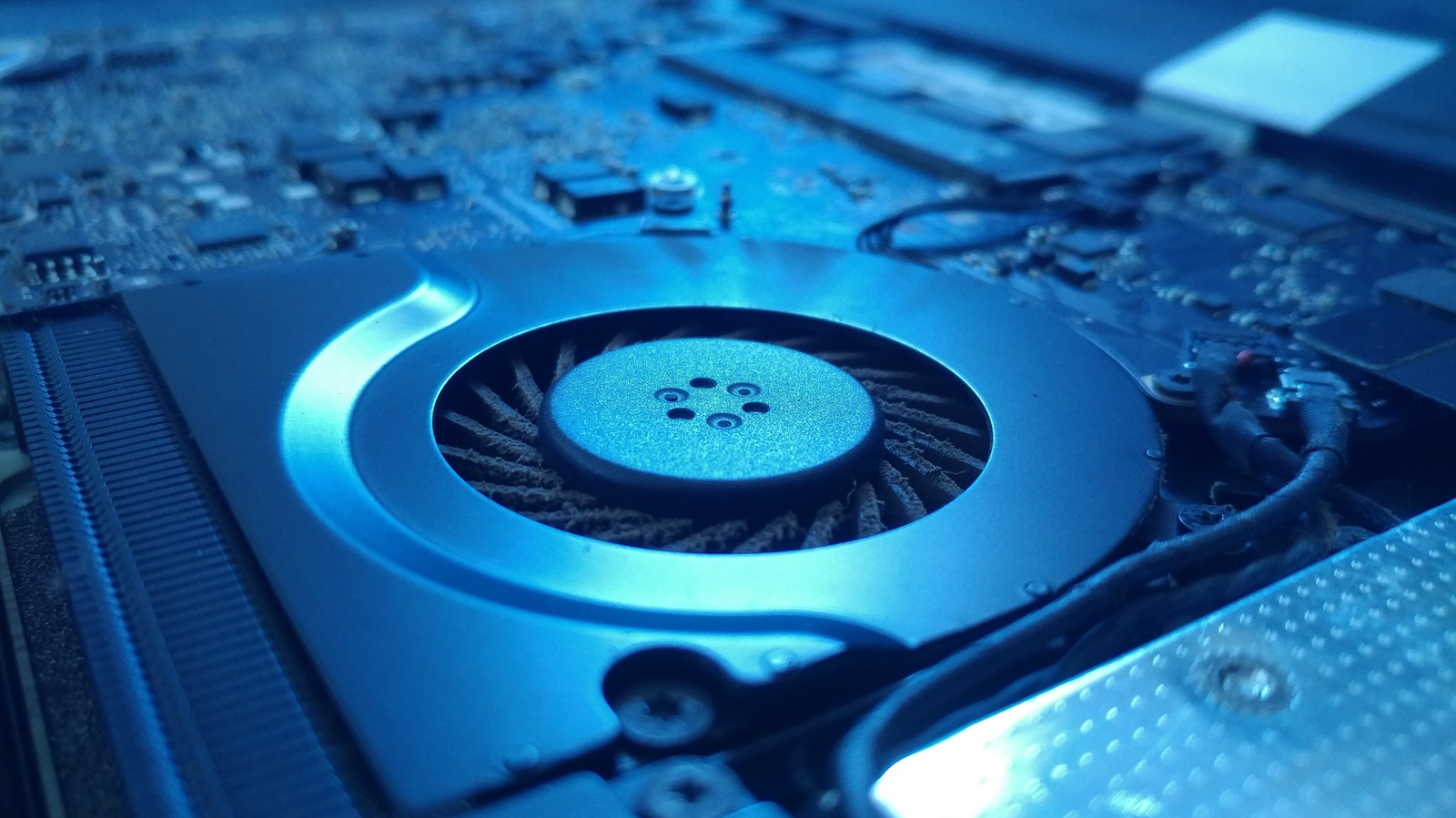
With a bit of cleaning and system management, you can keep your laptop fan from jump-scaring you.
You're sitting down with your laptop in front of you, getting a bit of light work done, when suddenly you hear what sounds like a jet engine going off. Your computer's fans start roaring and whirring, but after a short moment, everything is quiet again. If you've ever had your laptop fan sound off without warning like this, there are a few possible causes.
Over the years, laptops have become much better at managing performance and cooling, but even the best laptops of today need strong fans to keep their high-powered components cool in such a compact space. While some fan noise is perfectly normal, persistent or unusually loud bursts can indicate that your laptop is working harder than it needs to. Sudden spikes in fan noise are often caused by intensive background activity or dust restricting airflow. Both are relatively easy to investigate, and there are a few simple ways to check what's making your laptop work harder and address the problem.
The first thing to check if your laptop fan starts acting up is whether it's getting enough airflow. Make sure you're using it on a hard, flat surface like a table or desk rather than a bed, sofa, or other soft surface that could block its vents. If the fan continues to run loudly, dust buildup around the fans or air vents could be the issue.
Luckily, you can typically clean your fans and air vents without taking the machine apart. First, turn off your laptop, unplug any attached devices, and wait for it to cool. Then locate the air vents, which may be on the underside or sides of the device, depending on the model. Use short bursts of compressed air to dislodge dust and debris, following the instructions on the can. You can then wipe away any loose debris with a clean microfiber cloth.
If this approach doesn't do the trick, you may need to dismantle your laptop for greater access to the fans. Along with compressed air, you can also use an ESD-safe brush to remove dust from the components. This process may be a little advanced for some users, and the exact method depends on the type of laptop you're working with. If you're not comfortable taking apart your laptop yourself, it's worth getting in touch with a technician. Also, before dismantling the machine, check your warranty terms and manufacturer's guidance on user repairs, as opening the laptop or carrying out repairs yourself may affect your coverage.
If your laptop's fans continue to get extra loud at random intervals, it's possible the CPU is getting a covert workout. On Windows, tap Ctrl+Shift+Esc to open Task Manager and select Processes to see what's running. Click the CPU column to sort processes by how much processing power they're using, putting the biggest resource hogs at the top. Then, head to Startup apps and disable any programs you don't want launching automatically when you start your laptop. If you're a Mac user, open Activity Monitor (hit Command+Spacebar to open Spotlight Search if you're struggling to find it) and head to CPU to identify the processes using the most resources. Click the % CPU column to sort them, then select a process and click the Stop button, then choose Quit.
Before you get trigger-happy, look out for background processes you can live without instead of quitting them willy-nilly (as doing so can lead to some big crashes). On Windows, if you're not using programs like Calculator, Gaming Services, News and Interests, Phone Link, CTF Loader or Groove Music, you can generally end their processes. On Mac, you can quit lingering processes associated with apps you've already closed, Rosetta applications you're no longer using and disk image processes that are preventing a disk from ejecting. You can also disable Spotlight indexing if you don't need your Mac to maintain a fully indexed library.